This documentation will guide you through the process of setting up, configuring, and publishing your ITONICS Sites, ensuring you can harness their full potential for productive ideation and innovation.
With ITONICS Sites, you can:
- Create engaging forms
Easily design and deploy forms to gather specific information, whether for internal surveys or external data collection. - Develop effective campaigns
Launch targeted campaigns to foster ideation, encourage participation, and drive innovation across your teams. - Build custom HTML sites
Leverage the power of HTML to create fully customized sites that align with your branding and specific project requirements.
Create customized campaigns, landing pages for your innovation endeavours, and everything else you can think of.
Sites — Overview
Note that any changes done to parts of a Site, be it to a layout page or a form page, will stay in a draft mode until published.
Saving edits will not push them to the live environment.
Get an overview of all Sites associated with this workspace and create new Sites.
General Sites structure
- Sites can be Draft (default), Published, or Unpublished changes
- Sites have Pages attached to them
- Pages are either regular HTML Pages or Form Pages
- Form Pages have element types attached, inherit their properties and always create elements. Created elements have Site source attached, “Site source” property
- Layout Pages are regular HTML with optional inline css (via Tailwind)
- Pages are either regular HTML Pages or Form Pages
Navigate to the Sites Overview
- On the left side menu, press on More Tools
- Press on Sites
- It is also possible to pin items of the More Tools section to the menu bar by pressing the pin icon next to them, note that this pin is per user, items are not pinned globally.
Note that this settings-page is only available to users with Admin permissions.
Sites overview tab
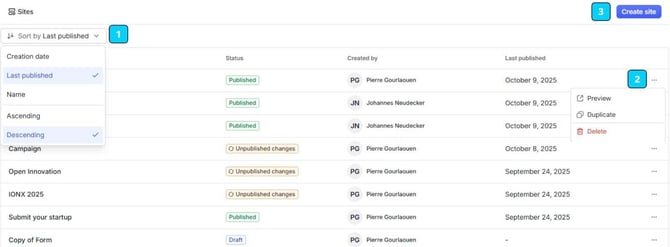
Actions in the overview tab
Site Creation
This section explains how to create an ITONICS Site.
Creating the Site
- Click Create Site
- Select a template
- Enter a Site title
Site Configuration
This section explains the configuration options for Sites and Pages.
Site Configuration — Overview
Upon creation, you will land on a page that looks like this.

Actions in the Site configuration
There are several actions possible in this window, learn which ones below. Also, see the picture below, for reference.
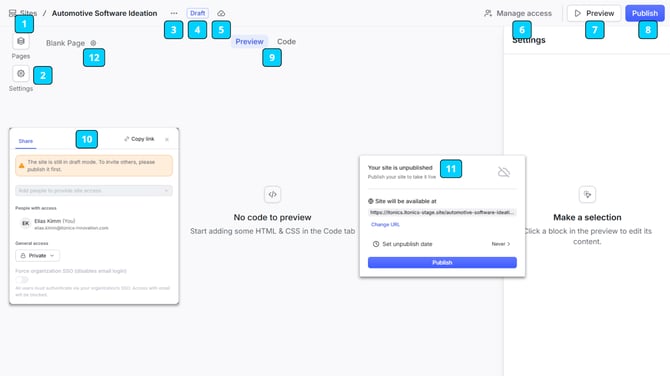
Page
ITONICS Page is the webpage the end-user will see when accessing the Site.
There are two types of Pages:
- Layout-Page
The layout page is fully customizable with HTML, and Tailwind and can be used as a landing page and for whatever else that is needed. They can be dynamically changed and cross-referenced in other ITONICS Pages. Use them to setup the entire campaign page. - Form-Page
The form page, as the name indicates, is used to submit elements into the ITONICS Innovation OS, select an element type and submit any element you want.
The form-page can be configured exactly like a processes form.
Configure all properties necessary for the element, save, and any element submitted will appear in your Innovation OS.
This section explains how to create a Page, what to keep in mind, best-practices and an example.
Page Creation — Layout
Setup the HTML for the landing page, home page, contact page, privacy, and whatever else is needed for your use case. Follow the steps below to learn how.
After creating a Site, the next step is to add Pages to it.
- Go to Pages
- Press “+” next to “search pages”
- Select Layout
- Name the Page
- Press enter
- New Page will be created
- It will open in the editor window in the middle
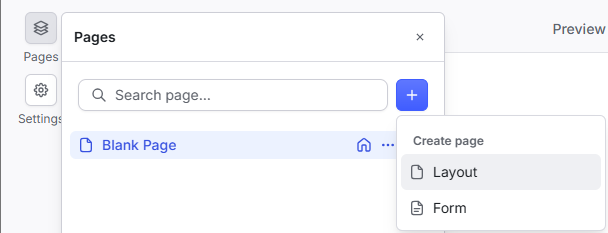
Setting Options for Pages
A new page has a set of options that can be performed on the page.
Change its name or slug via the Page settings cog-icon and hidden behind the 3-dots button, perform:
- Mark as home
Sets the redirect for the Site URL to this Homepage
Only one Page can be set as home - Hide page
Important for already published Sites, hidden pages cannot be accessed outside of the editor. - Rename
Change name of the page - Duplicate
Creates an exact copy of the page

Page Setup — Layout
This section explains how to generate HTML code for the Layout Pages, how to integrate that into the Page, what else to keep in mind, and best-practices.
Prompt engineering
In the age of LLMs, creating HTML code is as easy as engineering the right prompt and copy-pasting it into the ITONICS code editor.
To generate HTML code that can be copy-pasted into the Page editor, follow these steps.
- Use case: Think of the exact scenario that you want to cover with this page.
- LLMs will consider every part of your prompt, therefore be as accurate as possible.
- Personalize — include the company's name, the goal of its innovation endeavours and if you have access to your companies style-guide, and you are allowed to upload it to an LLM, upload that pdf too (this will ensure exceptional design results).
- Required buttons — Include whether or not the page should have a button to submit information (a link to a form page) and other UI elements.
- [Optional] If you have technical knowledge, feel free to include detailed information.
- Required keywords, keyphrases and best-practices: Include these keywords in your prompt, otherwise it will not work.
- Use HTML
To ensure the result will be HTML code. - Use only Tailwind styling, any other styling will be removed by the code editor
To ensure the result will be of high quality and will be able to be displayed properly.
Tailwind CSS is a utility-first CSS framework, it is responsible for making the pages appear pretty, without this, all Pages will look dull and lame. - Attach your company specific style guide
Most LLMs nowadays allow you to upload attachments. Use this to attach your company specific style guide (Warning: check first if your companies regulations allow for this, as some companies might prohibit this), this will greatly improve design and align it with the rest of your online presence. - Template to paste into every prompt
-
Create HTML code to paste into an online code editor, this code editor has strict guidelines that you have to follow, these are: only ever use regular html with inline tailwind, if state management is needed, use CSS-only Tailwind group variants, do not include a , replace tags with
, do not ever use
-
- Use HTML